RANDOM WALK BONSAI
DESCRIPTION
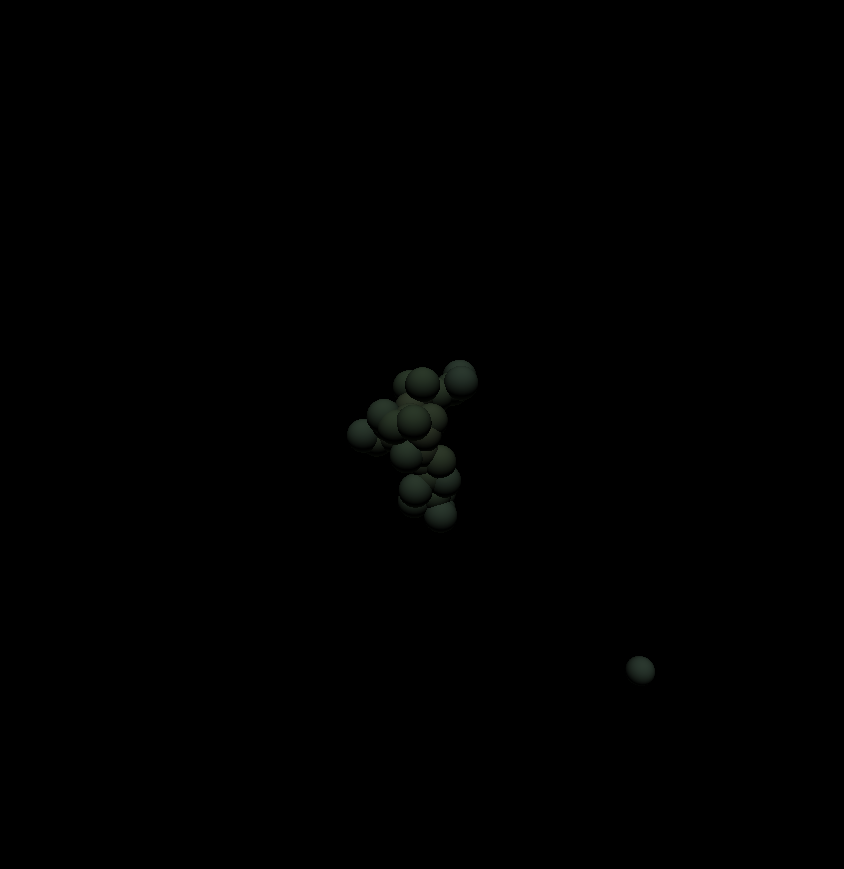
This is a mathematical simulator that gradually cultivates a plant-like structure with "ovules" moving randomly through three-dimensional space. I developed this application with reference to "Computer Recreations" by A. K. Dewdney which was a celebrated Scientific American column.
1. At first, a single ovule is placed at the center of the three-dimensional space. In addition, multiple ovules are moving around it at random.
2. When a moving ovule touches the stationary ovule at the center, it stops its activity there, and another ovule is introduced from outside the space. As this process repeats, the cluster of adhered ovules grows into a plant-like shape, hereinafter referred to as a "bonsai".
3. You can rotate the viewpoint by dragging with the left mouse button, zoom with the mouse wheel, and pan by dragging with the right mouse button (or with two fingers).
4. When you click "SETTINGS" at the bottom of the screen, the "SETTINGS" dialog opens.
5. When you click "SAVE" at the bottom of the dialog, you can save the current settings, bonsai data, and elapsed time to your browser. Since cultivating a bonsai takes a very long time, it is a good idea to save your data frequently.
6. When you click "LOAD" at the bottom of the dialog, you can resume cultivating the bonsai from the state saved with "SAVE". The settings at the time of saving are restored as well.
7. When you click "EXPORT" at the bottom of the dialog, you can download the data saved in your browser as JSON and OBJ files. The OBJ file can be imported into Blender.
8. When you click "IMPORT" at the bottom of the dialog, you can load the JSON file downloaded with "EXPORT" into your browser and resume cultivating the bonsai from that state. The settings at the time of saving are restored as well.
9. In the "SETTINGS" dialog, you can also change the colors of the bonsai, the radius of the three-dimensional space, the number of moving ovules, and the size of the ovules.
10. "Center Color" sets the color at the center of the bonsai, "Middle Color" sets the color halfway between the center and the outer edge, and "Edge Color" sets the color at the outer edge. "Area Radius" sets the radius of the three-dimensional space, "Active Ovules" sets the number of moving ovules, and "Ovule Size" sets the size of the ovules.
11. After changing the settings, click "APPLY SETTINGS" at the bottom of the dialog to apply the changes while keeping the bonsai and the elapsed time. Note that changing "Ovule Size" also changes the size of the adhered ovules, which alters the appearance of the bonsai. Also note that restoring bonsai data with "LOAD" or "IMPORT" brings the settings back to those at the time of saving.
TECHNOLOGY
p5.js, Next.js, TypeScript, and so on.